Home › Forums › Members Teaching Members › Use SoundSlice To Great Effect
- This topic has 0 replies, 1 voice, and was last updated 8 hours, 5 minutes ago by
 Michael Krailo.
-
AuthorPosts
-
-
October 21, 2026 at 5:47 pm #425633
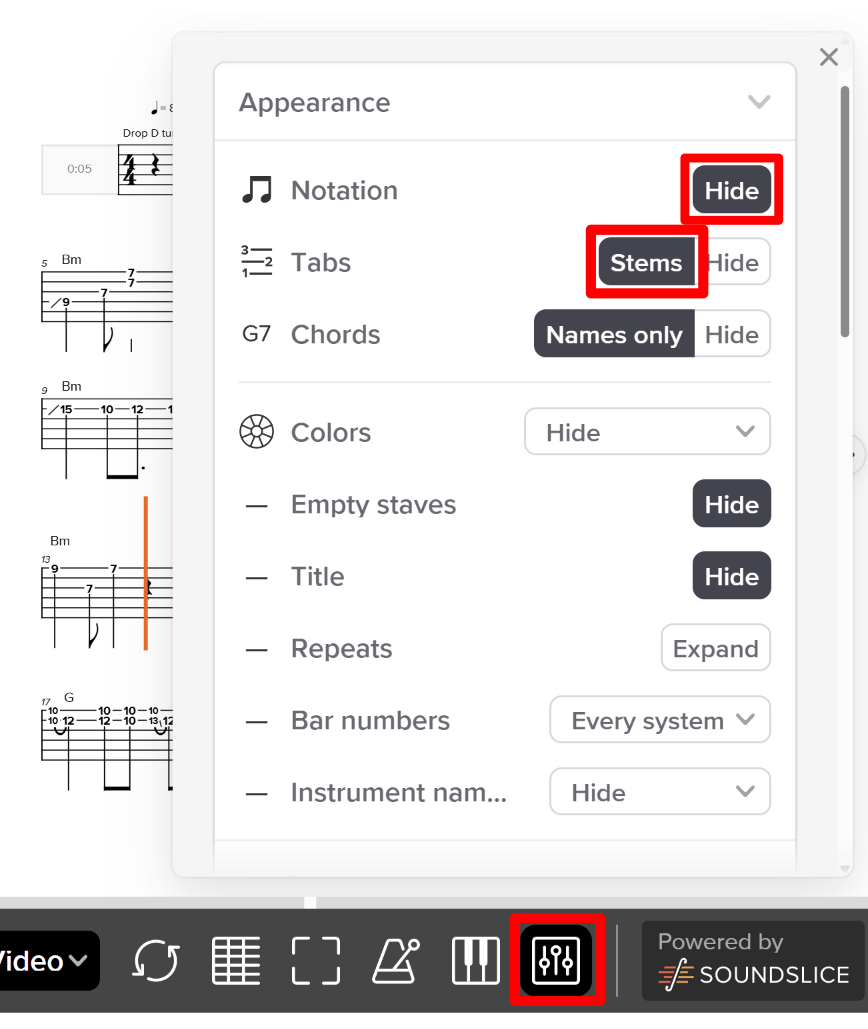
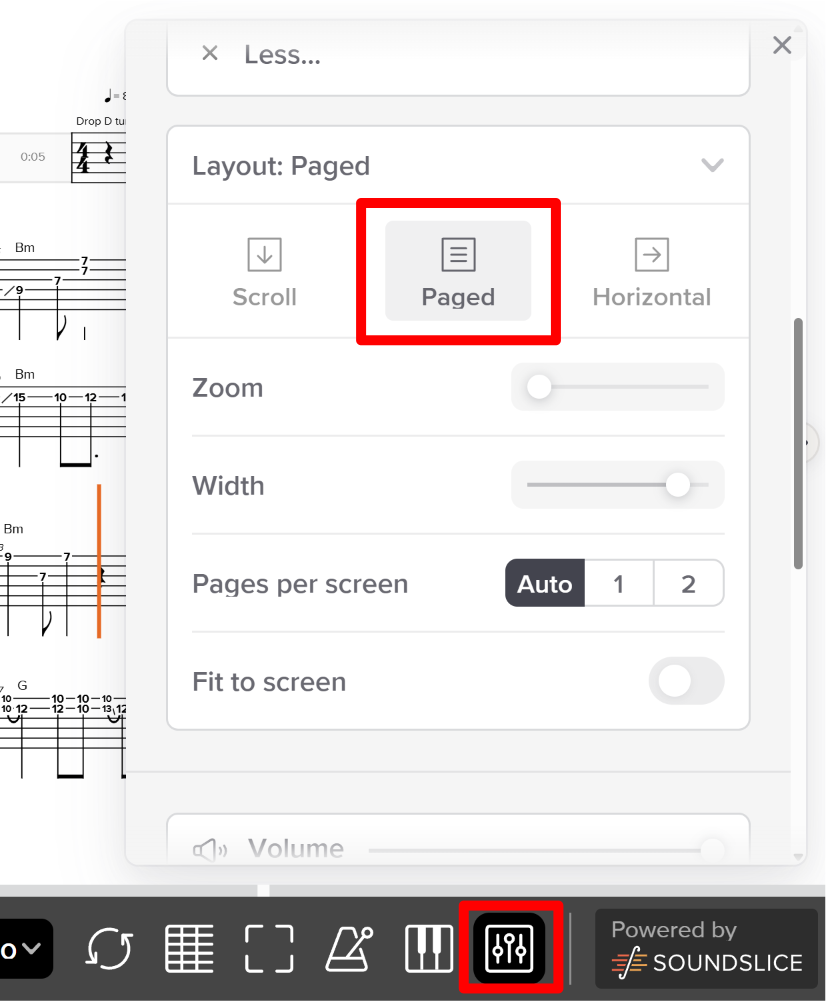
I’m going to let you in on a little secret about SoundSlice that you may not know about. But first let’s go over some basic settings and how I use it in general. If you have any questions, post them here and I’ll show you how to get the most out of it.
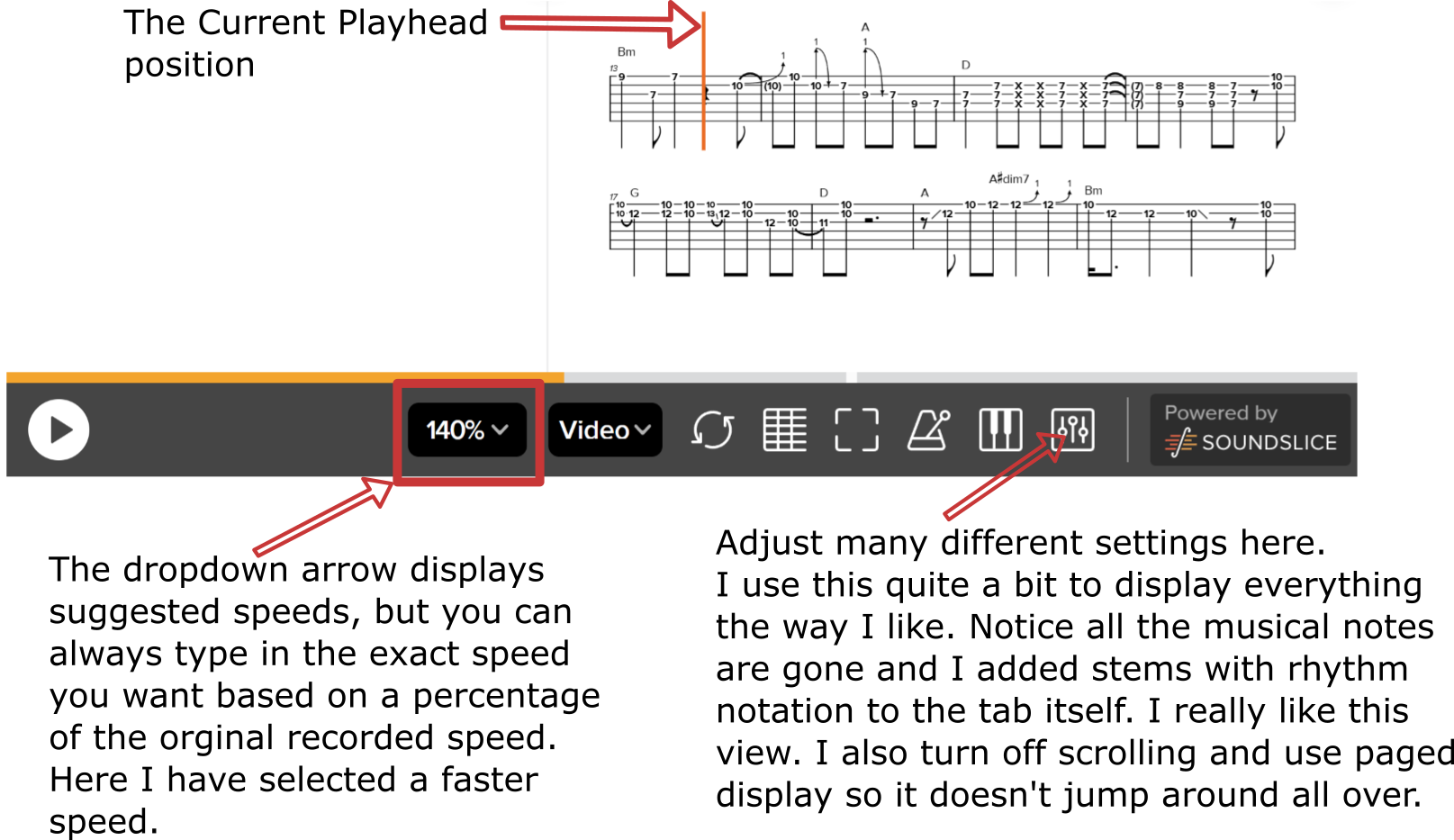
If you are new to using this tool, the most basic thing you can do is slow down the speed of the playback and you are not limited to what is shown in the dropdown list. You can type exactly the percentage to reduce or increase the speed of the playback.
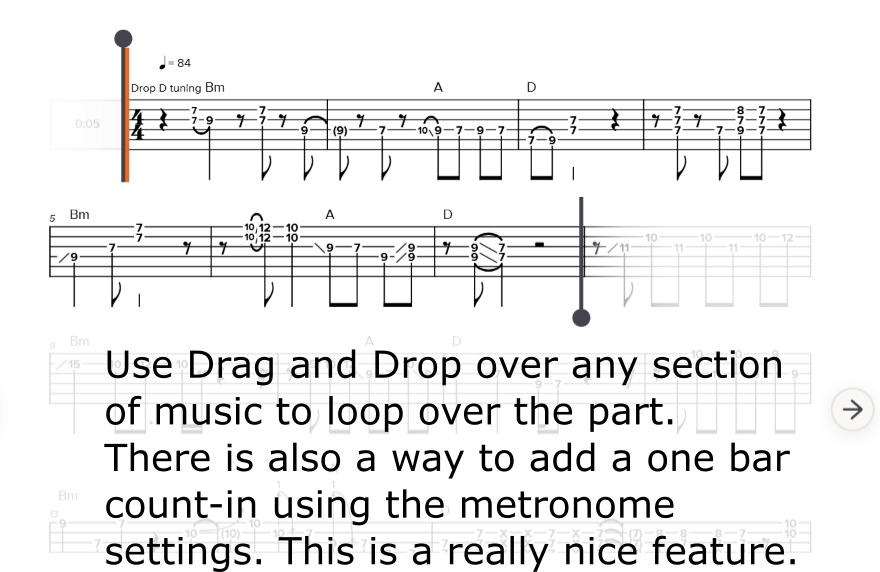
Here is the secret to inserting a full bar of count in click to your looped sections of music. If you are not using this feature, you are missing out on the best part of this application.
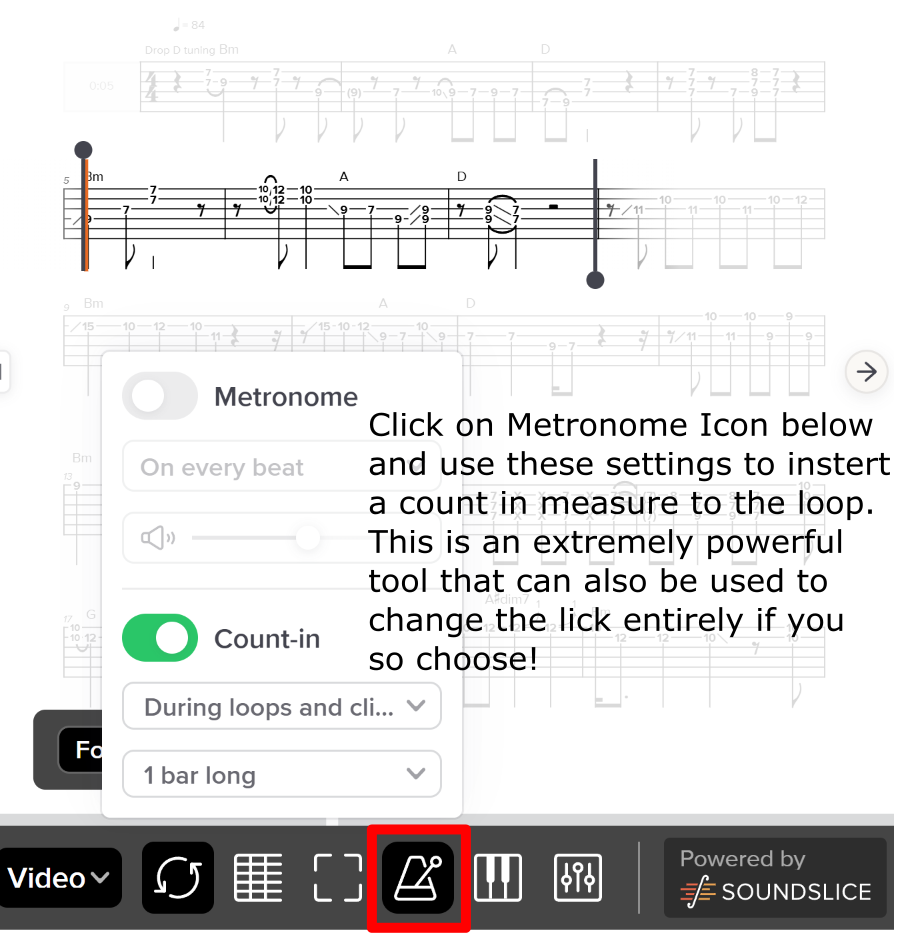
Furthermore, I found that I can play any of my improvised licks over these sections and then write down what I created from simply looping over a section and playing what comes to mind. This is very powerful and I cannot recommend doing this enough. If you just want to nail the original lick, this is the way to do it. If you want to make variations to the lick, this is exactly how I practice the new lick over the looped section of music. Until I discovered how to do this, it was very frustrating looping over the exact section that I wanted to focus on. Here are some handy shortcuts as well.
Playback control
Spacebar — Play/pauseEnter / Home — Jump to start of audio (jumps to loop start if looping)
End — Jump to end of audio (jumps to loop end if looping)
Navigation inside the loop
Left Arrow — Rewind 5 seconds during playbackRight Arrow — Fast‑forward 5 seconds during playback
Ctrl + Left Arrow — Jump to previous barline (moves to earlier part of the loop)
Ctrl + Right Arrow — Jump to next barline (moves forward within the loop)
Speed control
< — Slower playback speed> — Faster playback speed
Zoom (notation only)
Ctrl + — Zoom in on notationCtrl – — Zoom out on notation
Root note patterns >>> CAGED shapes >>> TRIAD'S. Just put in the work and watch your guitar skills soar.
-
This topic was modified 8 hours, 1 minute ago by Michael Krailo.
-
This topic was modified 7 hours, 52 minutes ago by Michael Krailo.
-
This topic was modified 8 hours, 1 minute ago by
-
-
AuthorPosts

- You must be logged in to reply to this topic.
